Assistive technologyScreen readersTalkBack Screen Reader OverviewTalkBack Screen ReaderTalkBack without an Android

TalkBack without an Android
Related resources:
- Overview
- Testing
- TalkBack without an Android (current)
TalkBack usually requires an Android device, but there are some good reasons why you might want to use TalkBack from a Windows PC, Linux, or Mac:
- Accessibility testing - TalkBack is the most popular screen reader available for Android, and it’s necessary to test with it to ensure compatibility
- Considering switching to Android - maybe you’re currently using an iPhone but are considering a switch
Luckily, it’s possible to use TalkBack without an Android using a few techniques.
Remote Testing With Assistiv Labs
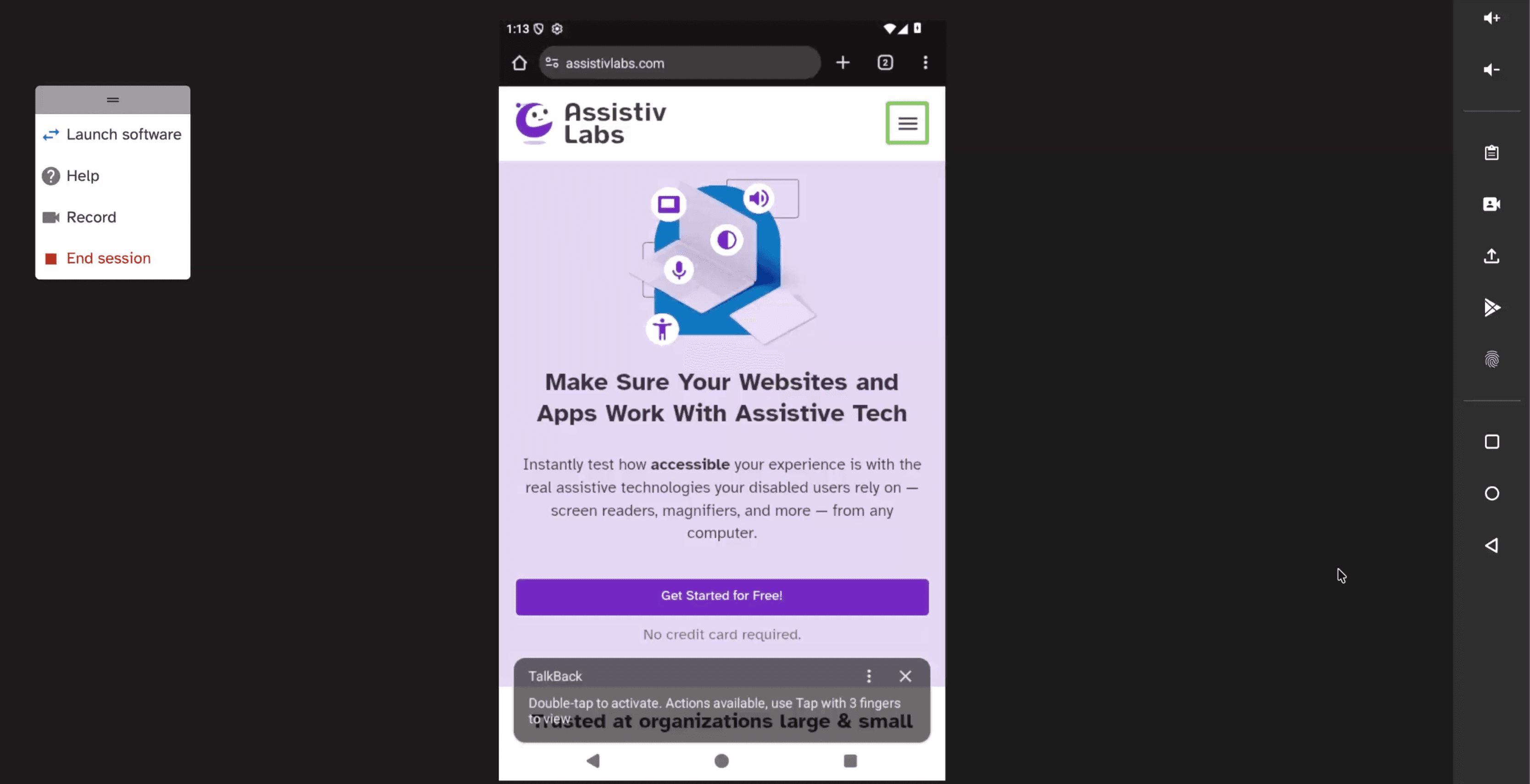
Assistiv Labs is an online service that allows you to access a real copy of TalkBack running on Android remotely, through any modern web browser, like Chrome or Edge.
- Full support for TalkBack commands via keyboard shortcuts
- Ephemeral sessions ensure you always start with a consistent, reproducible environment
- Seamlessly access localhost and VPN-only websites with AssistivTunnel
- High performance remote connection streams audio and video with low latency
- Easily scale access to your team or company
In less than a minute, you can start testing. Start a 14 day free trial and reach out to let us know you’d like to add TalkBack.
Android Emulator
The official Android Emulator runs on Windows, macOS, Linux, and ChromeOS. Your computer must have at least 16 GB RAM, and if you have a GPU, the Emulator can use it to significantly improve UI responsiveness.
If you have the extra memory, disk space, and CPU to run it, the Emulator is a great TalkBack test environment.
“Emulator” is actually a misnomer these days, the Android Emulator is mostly a virtual machine using the QEMU hypervisor, which means it can take advantage of near-native performance, assuming your OS, CPU, and GPU support the appropriate features. This wasn't always true, in its early days the Android Emulator performed true emulation, translating ARM instructions to x86_64 in software, leading to an incredibly sluggish UX. Luckily those days are long gone.
Check out Getting Started with Android Studio for Mobile Accessibility Testing on YouTube for a great walkthrough.
Caveat: most Android devices have ARM CPUs, while your computer may be x86 or x64 (although newer Macs use Apple Silicon, which is ARM). Most Android apps are compiled for ARM, and x86 versions may not be available. While the Emulator can translate from ARM to x86 (via emulation), it incurs a performance overhead that slows down the UX.
Other Virtual Machines
Since Android is an open source operating system, 3rd parties have created their own virtual machines (VMs), which can offer performance gains and lighter weight installations. Solutions include:
- Genymotion Desktop (general purpose)
- Bluestacks (usually for gaming)
- Android Cuttlefish (advanced setup)
Note these options are not exactly the same Android OS that runs on Google Pixel phones, for example. The differences may or may not be inconsequential for accessibility testing, so research before picking a solution.
Not all computers support virtualization, and the same caveat as above applies if your computer does not have an ARM CPU.
Device Hosting
Solutions like AWS Device Farm and Samsung Remote Test Lab have real Android phones and tablets that can be reserved for use.
This is great for debugging issues that you can’t reproduce with any other device, but it’s generally slower and less efficient than other solutions.
Caveat: use extreme caution with “shared” devices, like non-private AWS devices or Samsung’s. There’s a chance your data will not be securely cleared before the device is given to someone else.
While we continue to add additional cleanup steps and improve the cleanup process, it is possible for data to persist between sessions in some cases, especially if you make use of the device system outside the context of your app. For this reason, and because AWS Device Farm captures video and logs of activity taking place during your use of each device, it is recommended that you avoid providing or entering sensitive information such as account info (E.g., Google Account, Apple ID), personal information, and other security-sensitive details during your automated test and remote access sessions.
-AWS Device Farm FAQ
Private devices are available at a higher cost to mitigate this issue.